02. Build Your Project

Build Your Project
For this project, you will be taking the Course 1 Unity Project, customizing it, and deploying it to your phone. You can find the starter project here.
Once you've downloaded the zip file of the source code, unzip it. In Unity, click Open. Navigate to the unzipped project folder and click "Select Folder". Unity will take a minute or two to open the project.
The scene you will be modifying is called Carnival.unity and is located int Assets/UdacityVR/Scences. As you can probably guess from the name, we have made a fun carnival scene for you to practice your skills on.
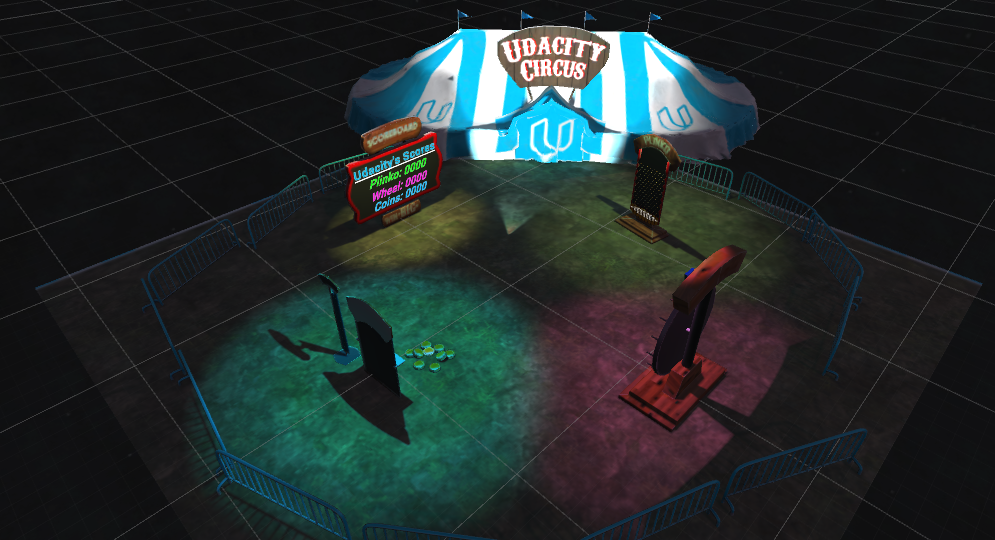
Your task will be to personalize and fix the broken Carnival games. In the scene, there is a scoreboard and 3 game machines: Plinko, the Wheel of Fortune, and Coin Toss.
We will be breaking down this project into a couple quizzes and as you complete each one, you will be awarded a tip to help you complete this project faster.
Games
Coin Toss
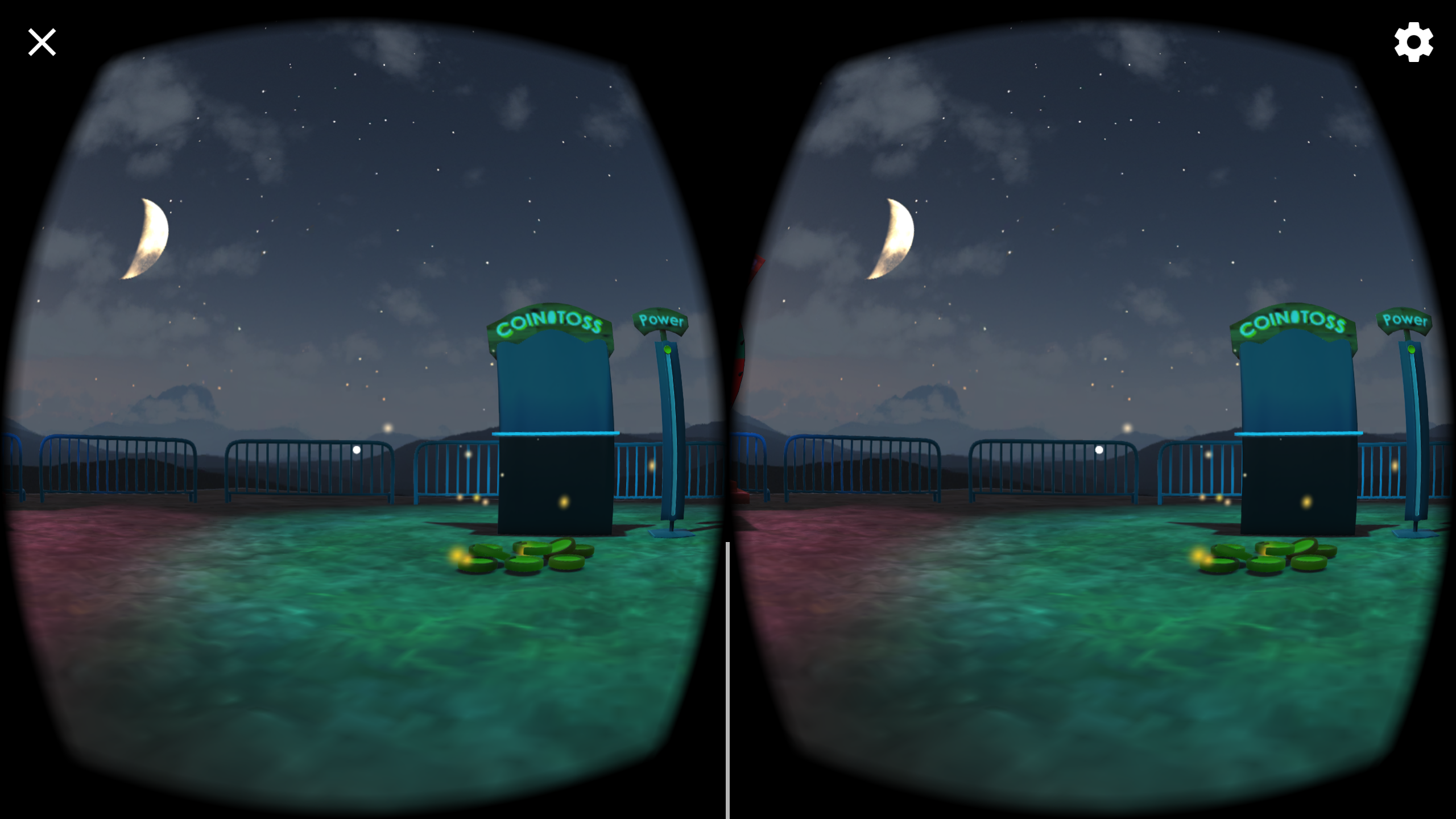
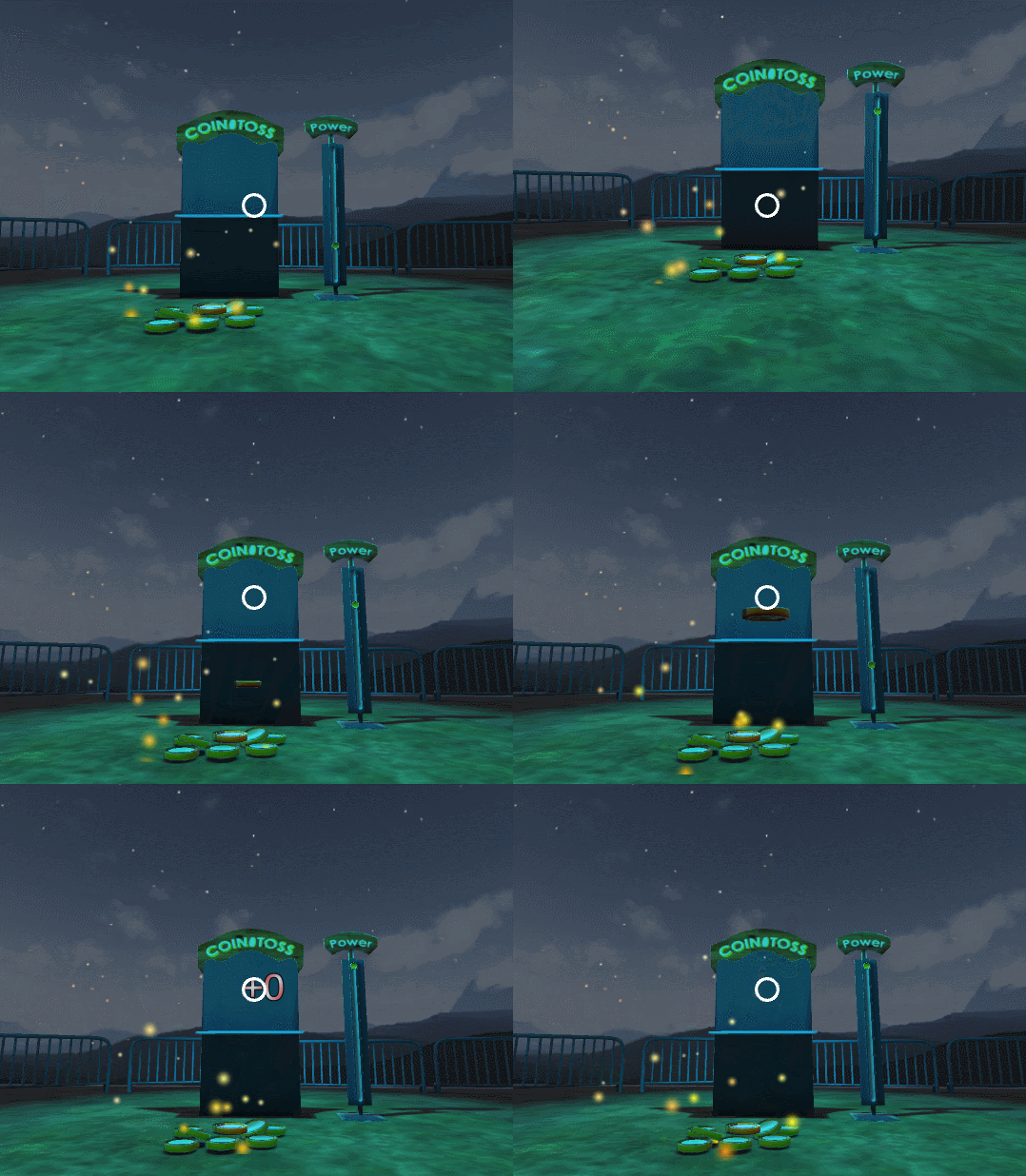
Your first task is to make it possible to complete the Coin Toss game. Currently, in the starter project, when you attempt to throw the coin, it just drops to the ground (see GIF).
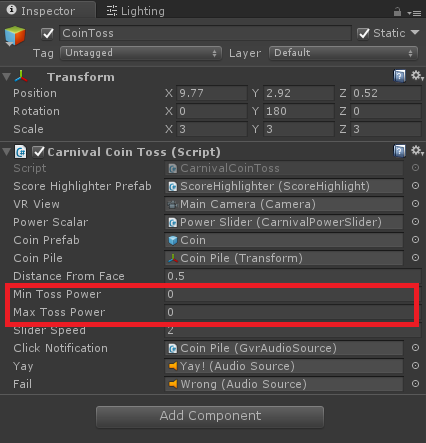
On the Coin Toss GameObject, there exists a Carnival Coin Toss script. To fix this game, you will need to change the Min and Max Toss Power from 0 to a values that enable you to land the coin when the power scale is about 50%
Wheel of Fortune
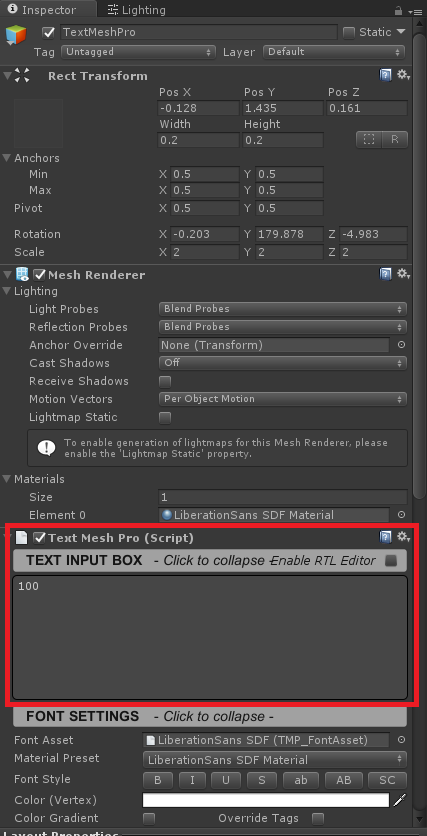
As it is right now, it is a rather boring Wheel of Fortune that will always provide you 100 points, no matter what. Let's spice this up by changing the wheel to provide more points for landing on smaller wedges. To do so, you will need to change the point value on each of the Text Components. You can find them by either clicking on them or discovering them in the Hierarchy.
Plinko
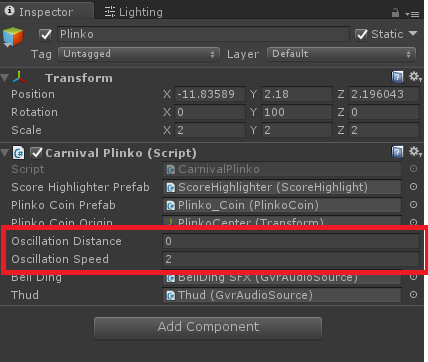
In the starter project, when you click on Plinko, the coin just drops (see GIF) and in most cases, we will just earn 200 points. Add some variance to the game by having the coin oscillate back and forth. Make sure it stays within the game!

Just like the Coin Toss game, on the Plinko object there exists a component with a property that controls Oscillation Distance and Speed. Tweak those parameters to make the game more challenging.
Personalize
Behind all the games exists a scoreboard that keeps track of all points you earn while playing. Since this is now your project, you can add your name to the Scoreboard instead of Udacity. This will be just like changing the text for the Wheel of Fortune.

Move the Teddy Bear
As part of any carnival, we need a reward and what better one than a giant Teddy Bear! You will earn the bear when you reach 2,000 points while playing the Carnival game.
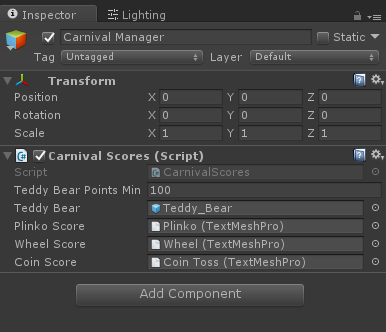
Hint: During testing, it can be helpful to temporarily lower the Teddy Bear Points Min property value of the Carnival Manager as shown in this image:
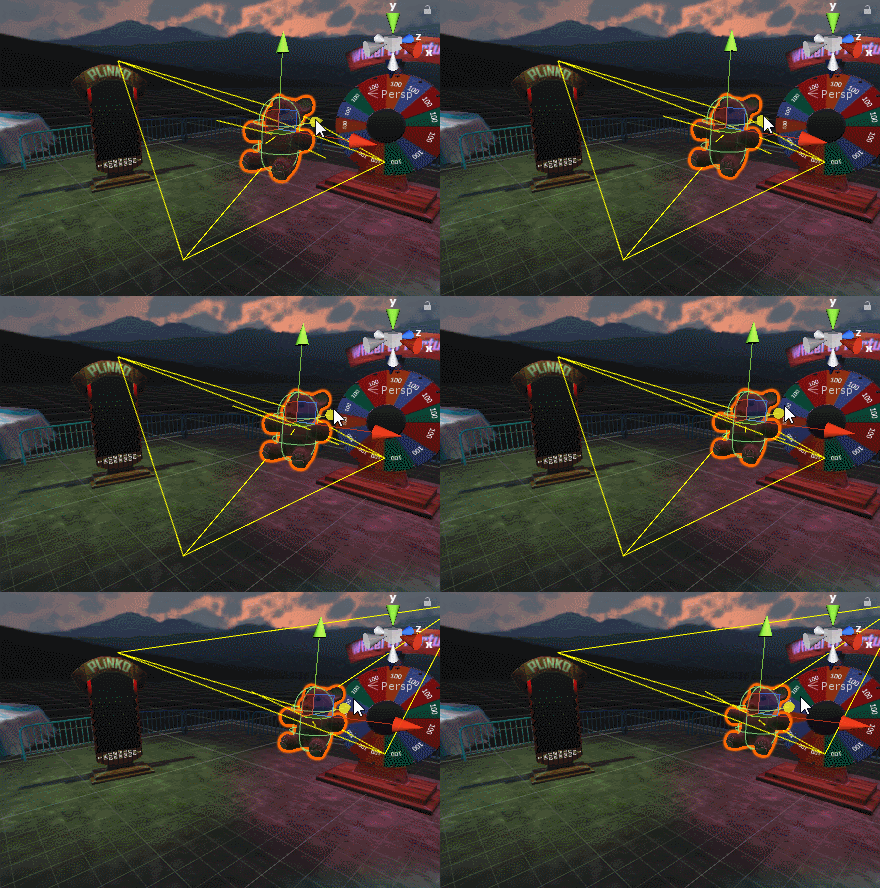
Unfortunately, the bear falls on the Camera when we win the game, so move it in front of the camera:
Screenshot
You will also need to use Unity to deploy your customized project to your phone. Once you have it running, you will need to take a screenshot of your app running on your device. Taking a screenshot will vary from device to device, please refer to your phone's manual or Google to take a screenshot on your phone.